
- Open the App Store to access OpenClaw background
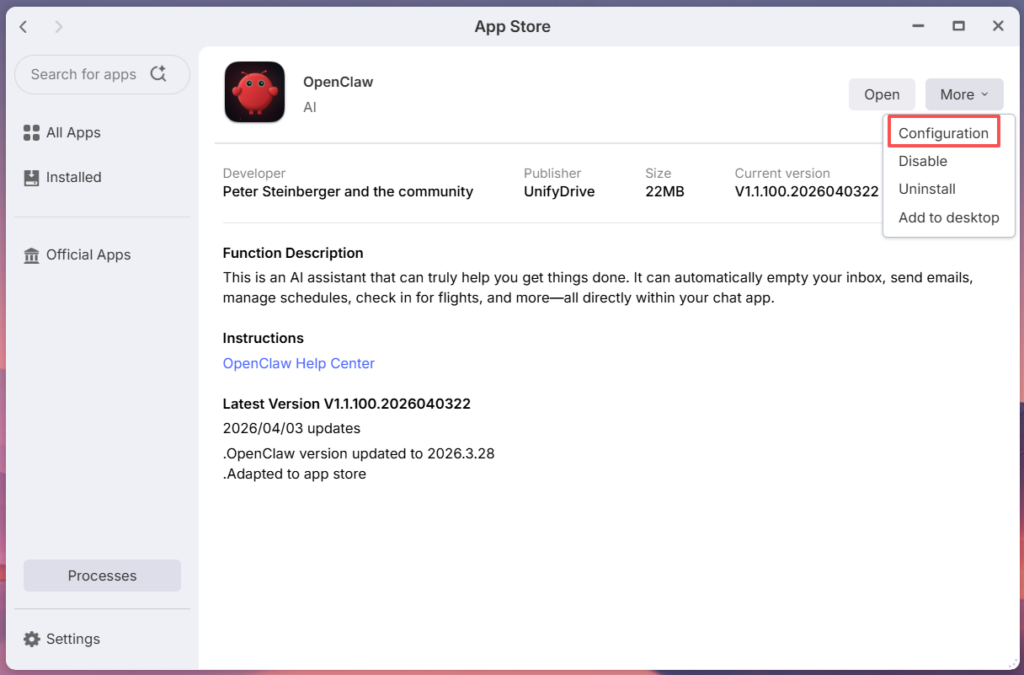
- Open OpenClaw’s container terminal page Open terminal,
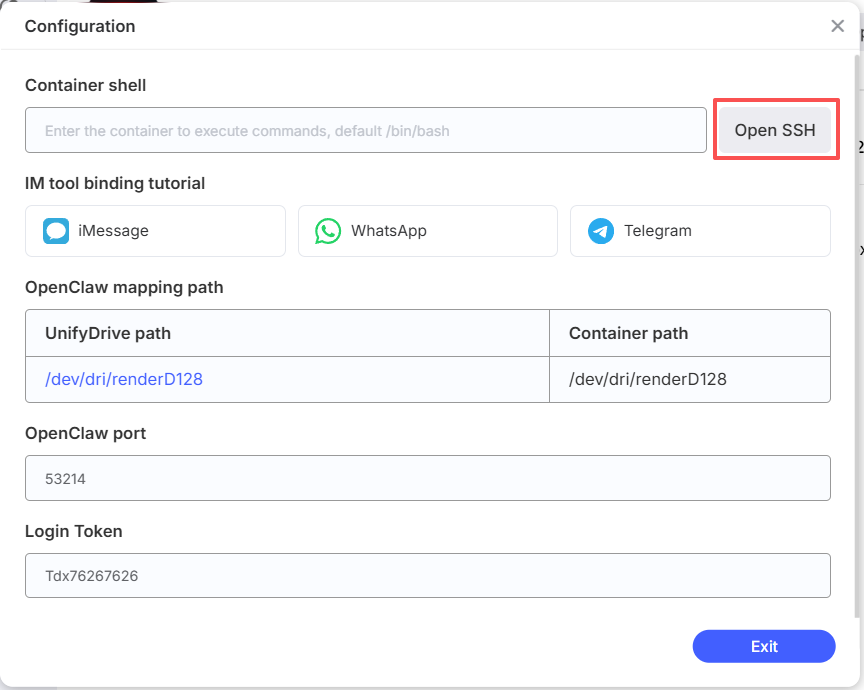
- enter openclaw configure
- 「Where will the Gateway run?」→ Local (this machine)
- 「Select sections to configure」→Channels
- 「Channels」→ Configure/link
- 「Select a channel to configure/link」→ Whatsapp
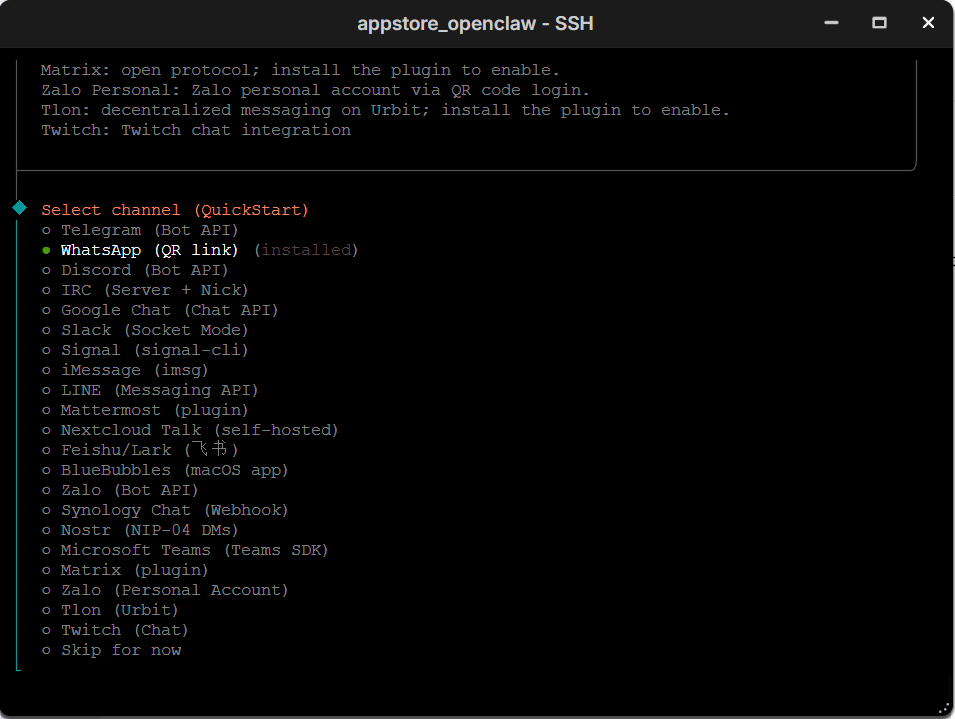
- Select yes
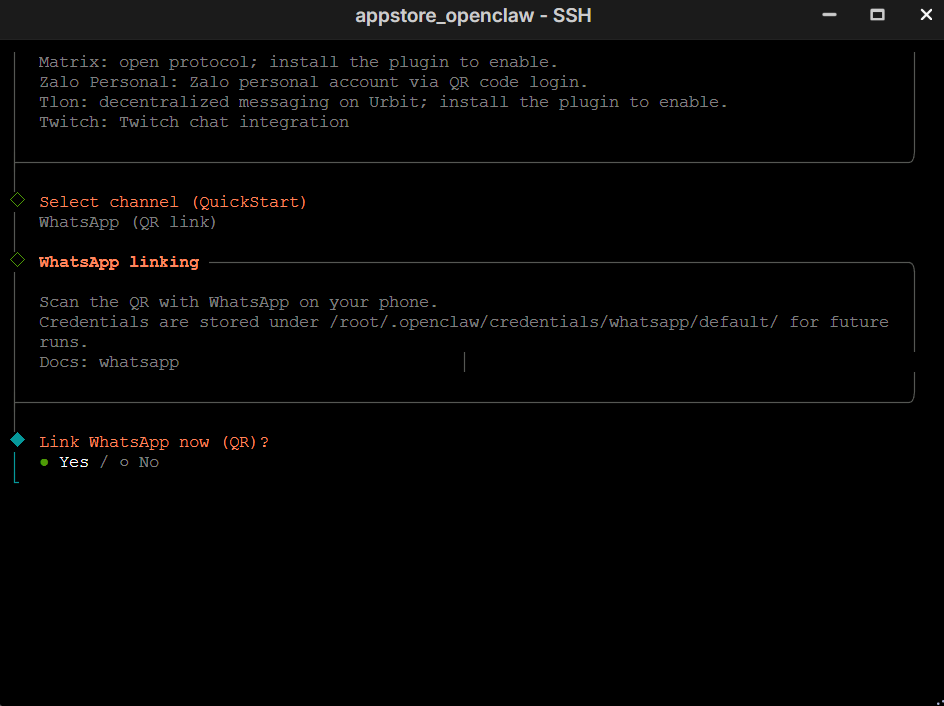
- Use your phone’s whatsapp to scan the QR code for binding,
- Select phone number setup method
Method1: When you only have one WhatsApp account, select This is my personal phone number;
Method 2 (recommended): When you have prepared OpenClaw separate account for OpenClaw, select Separate phone just for Clawdbot。
- WhatsApp DM policy settings (phone number set to Separate phone just for Clawdbot as this step),Default select the first Pairing (recommended) is fine.
- WhatsApp allowFrom Settings (phone number set to Separate phone just for Clawdboth as this step)Default select the first Unset allowFrom (default) is fine.
- Configure skill now? (recommended) Select no, it is recommended to limit permissions to improve security and stability
- Enable hooks? It is recommended to select session-memory, if this step does not appear you can skip it, if this step does not appear you can skip it
- Gateway service already installed, select restart
- How do you want to hatch your bot? Select Do this later
- In whatsapp, send a message
Method1: When you only have WhatsApp account, in WhatsApp, select“Message myself”。
Method 2: When you have prepared a separate account for OpenClaw, you can add this account as a friend in WhatsApp and send a message.
- At this point it will give you a pairing code, copy this part: openclaw pairing approve whatsapp ABC123
- Go back to OpenClaw’s terminal, copy the following openclaw pairing approve whatsapp ABC123 to communicate with OpenClaw


