
High-Performance Desktop Integration for Professional Creators
Thunderbolt Flash Drive Mode transforms your UnifyDrive into an ultra-high-speed workstation hub by establishing a direct, massive-bandwidth connection to your computer. While this enables all users to migrate large datasets efficiently, it is specifically engineered for Pro Editors who need to work with high-bitrate 4K and 8K RAW footage natively, eliminating the latency typical of standard network storage.
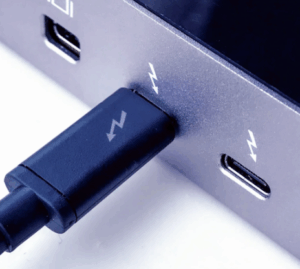
Ensure your computer features a Thunderbolt 3, Thunderbolt 4, or USB4 port (typically identified by the lightning bolt ⚡️ icon). You MUST use the original Thunderbolt cable included in the box. Using standard USB-C charging cables will significantly degrade performance or prevent the device from mounting correctly.
For Windows systems, specialized controller software is required to manage the Thunderbolt pipeline:
- Priority 1: Download the Thunderbolt Driver/Control Center directly from your PC or motherboard manufacturer’s official support page (e.g., Dell, ASUS, Lenovo) for maximum hardware optimization.
- Priority 2: If unavailable from the manufacturer, install the Intel Thunderbolt Control Center via the Microsoft Store.
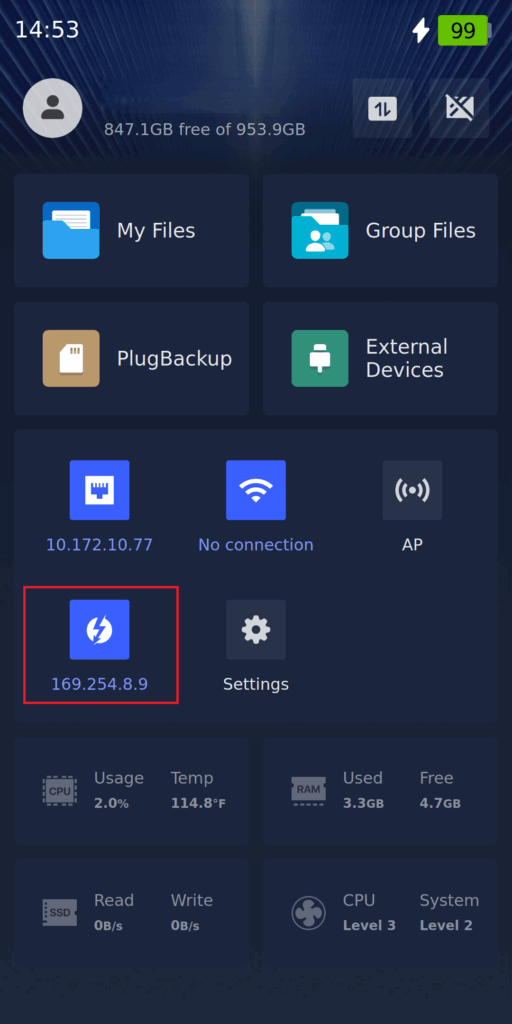
A hardware handshake is confirmed when your OS detects an IP address in the 169.254.x.x range. For professional environments, we recommend configuring a Static IP to ensure persistent file paths for your creative software.
To prevent address conflicts and ensure stable connectivity, please use the following configuration:
| Device | IP Address | Subnet Mask |
|---|---|---|
| Your Computer | 10.10.10.10 |
255.255.255.0 |
| UnifyDrive (Thunderbolt) | 10.10.10.11 |
255.255.255.0 |
The Subnet Mask is a required field in most operating systems and must match on both devices.
Access the device using its assigned Static IP (10.10.10.11):
- Windows: Enter
\\10.10.10.11in the File Explorer address bar. - macOS: Use Finder
Cmd + Kand entersmb://10.10.10.11.
By mapping the UnifyDrive as a permanent drive using a Static IP, your DaVinci Resolve or Premiere Pro projects will maintain their media links seamlessly. The massive bandwidth allows you to playback complex, multi-layer timelines with the same responsiveness as internal NVMe storage.


