
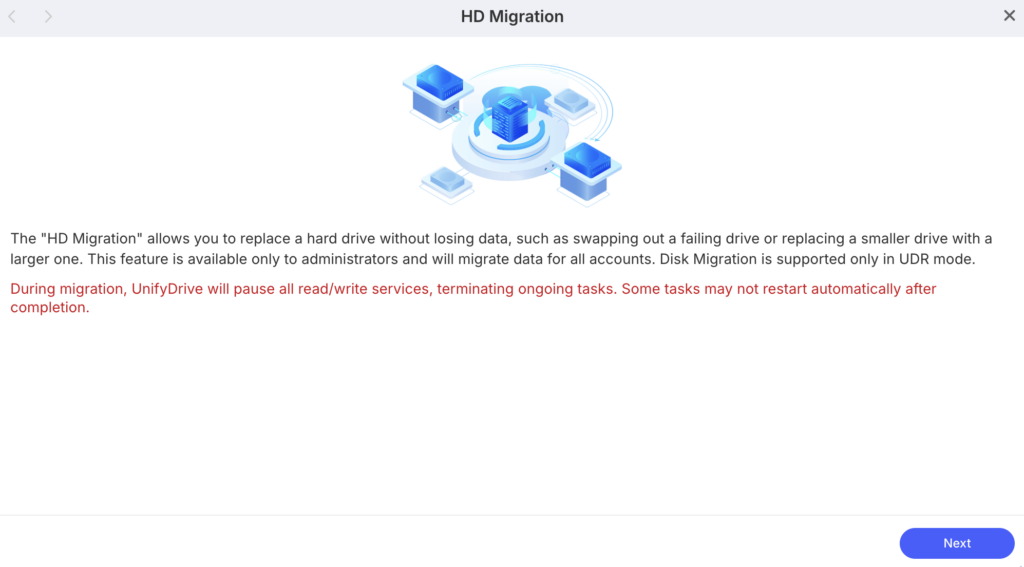
HD Migration(Hard Disk Migration) allows you to replace a hard drive without losing data, such as swapping out a failing drive or upgrading to a larger-capacity drive. This feature is available only to administrators and will migrate all user data stored on the device.
Important Notes #
- During the migration process, UnifyDrive will temporarily suspend all read/write services and terminate any ongoing tasks.
- Some tasks may not automatically resume after the migration is completed.
- HD Migration is only supported when the device is operating in UDR mode.
- Do not power off the device or remove any drives while the migration is in progress.
How to Use HD Migration #
- You can found HD migration app on either Mobile or Desktop Client
- Select HD Migration.
- Follow the on-screen instructions to choose the Pool and target drives.
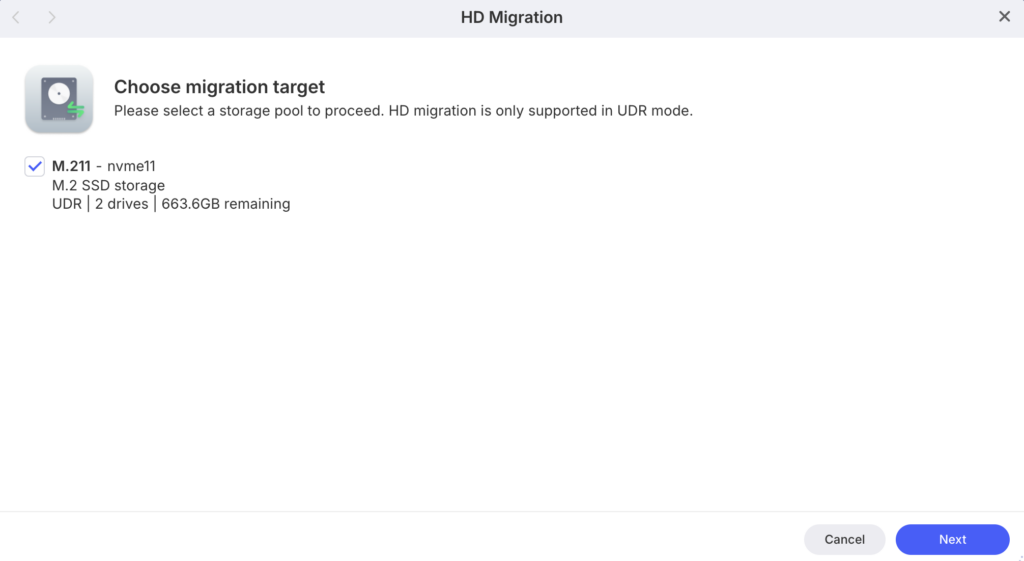
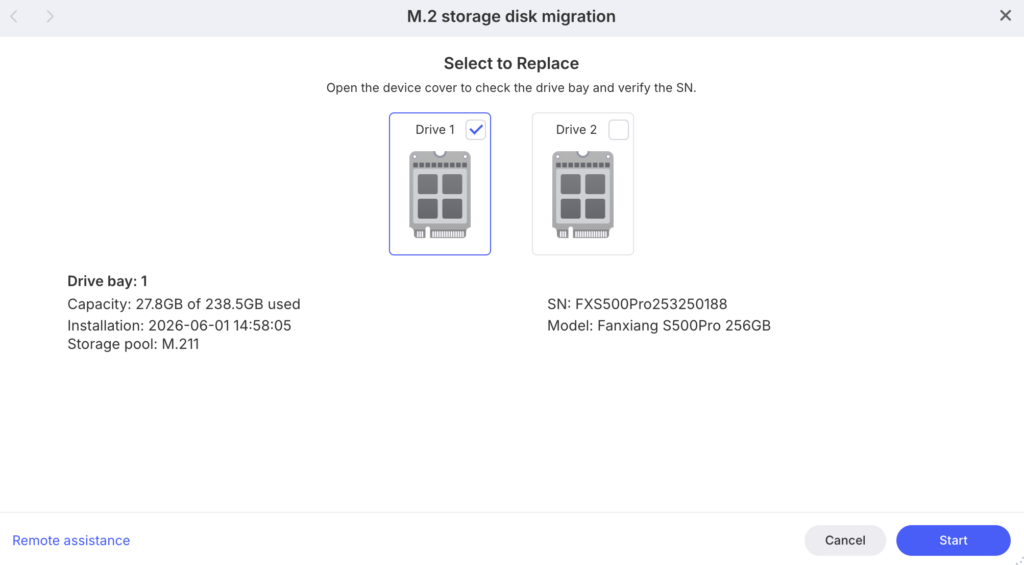
- Confirm the migration settings and start the process.
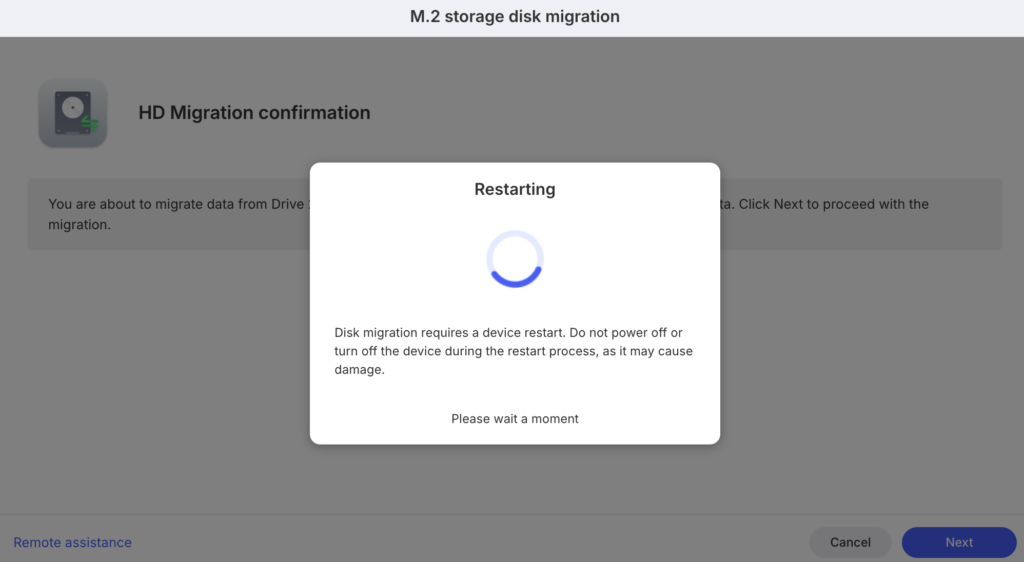
- Wait for the migration to complete before removing or replacing any drives.
Optional: Extra Protection for Migration #
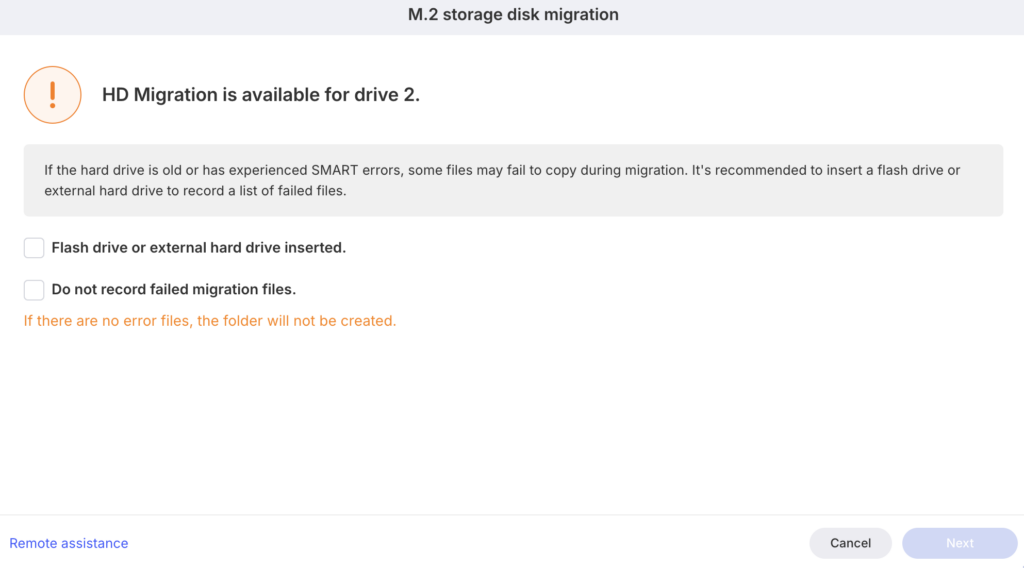
To enhance data security during migration, UnifyDrive provides an optional feature to record failed file transfers. This allows you to maintain an additional layer of protection and ensures that no important files are accidentally lost.
Docker Users
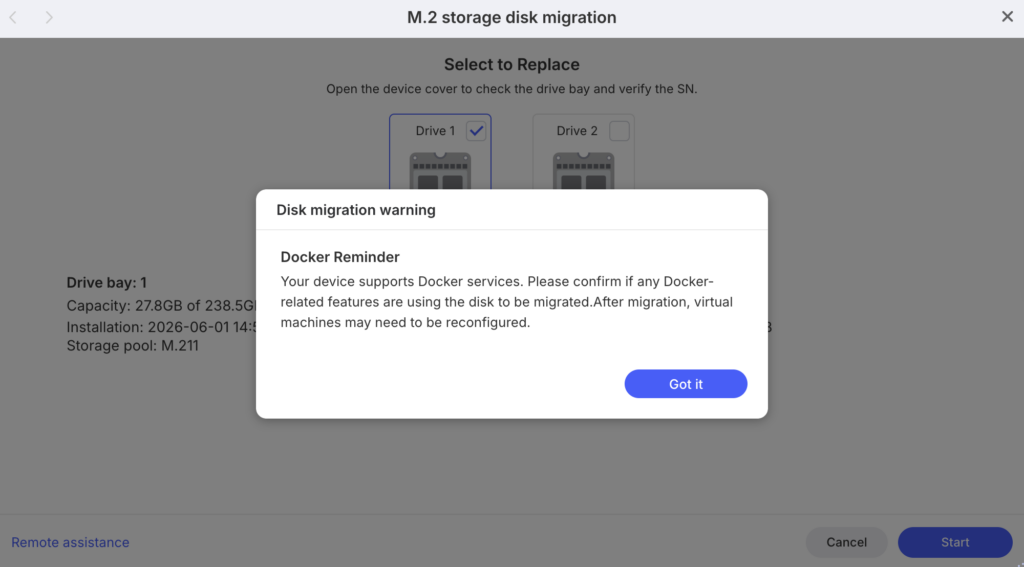
If your drive contains Docker data directories, UnifyDrive will display a Docker Reminder before starting HD Migration.
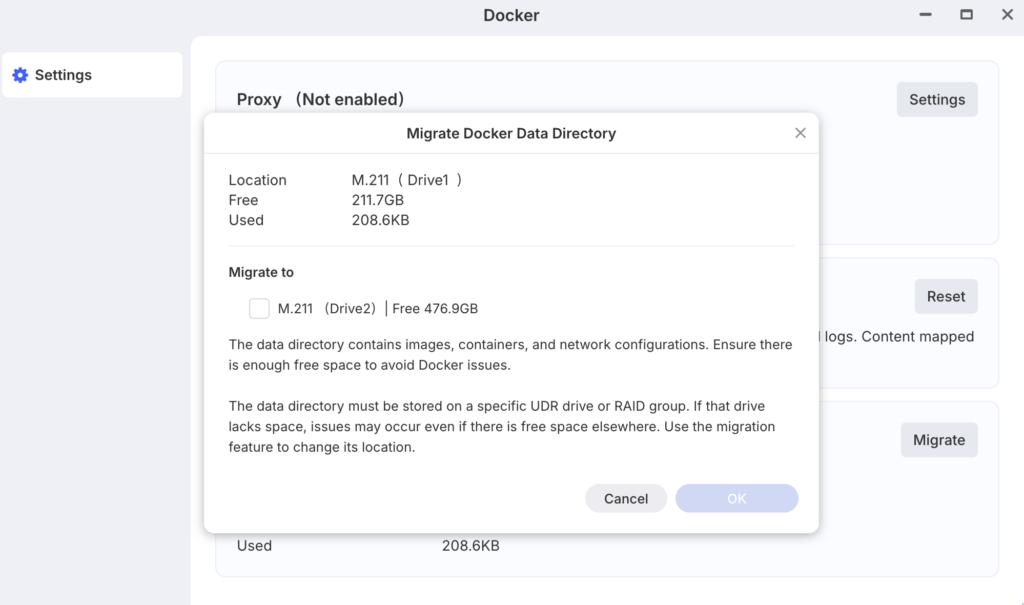
You can find migration option from the Docker app like shown below.
Once the migration is finished, verify that your data is accessible and functioning normally before putting the original drive out of service.


