
Mac Backup is a dedicated application developed by UnifyDrive, specifically designed for the entire Mac lineup, including Mac desktops and MacBooks.
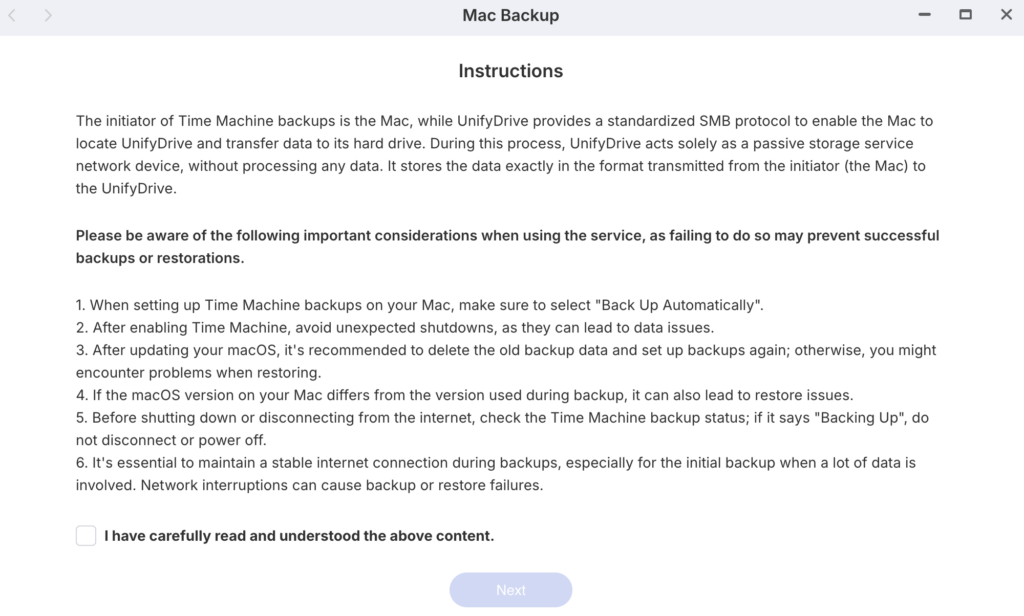
Please be aware of the following important considerations when using the service, as failing to do so may prevent successful backups or restorations.
- It’s essential to maintain a stable network connection during backups, especially for the initial backup when a lot of data is involved. Network interruptions can cause backup or restore failures.
- When setting up Time Machine backups on your Mac, make sure to select “Back Up Automatically”.
- After enabling Time Machine, avoid unexpected shutdowns, as they can lead to data issues.
- After updating your macOS, it’s recommended to delete the old backup data and set up backups again; otherwise, you might encounter problems when restoring.
- If the macOS version on your Mac differs from the version used during backup, it can also lead to restore issues.
- Before shutting down or disconnecting from the internet, check the Time Machine backup status; if it says “Backing Up”, do not disconnect or power off.
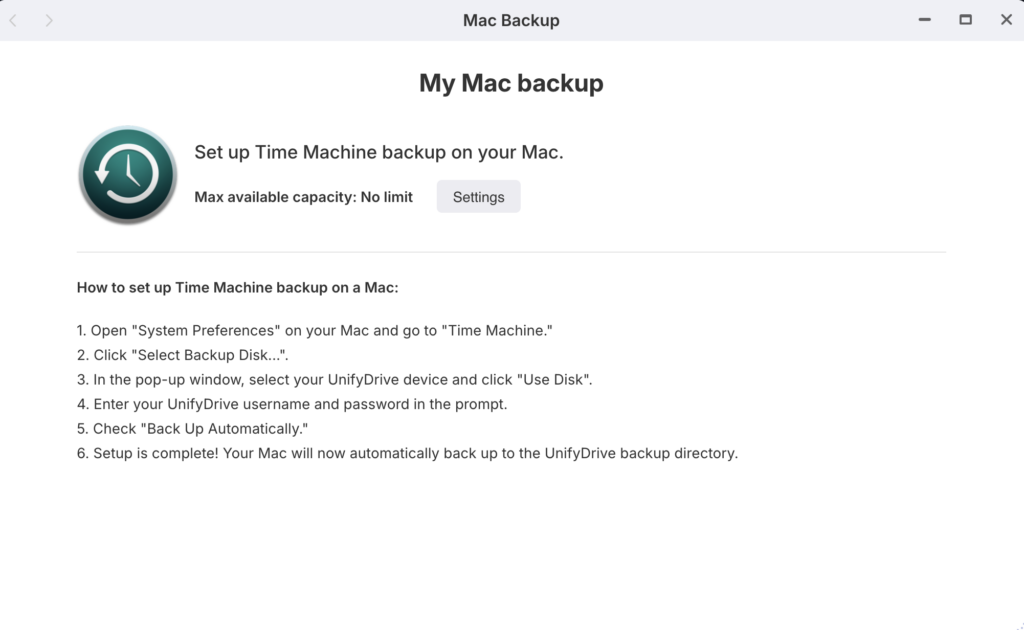
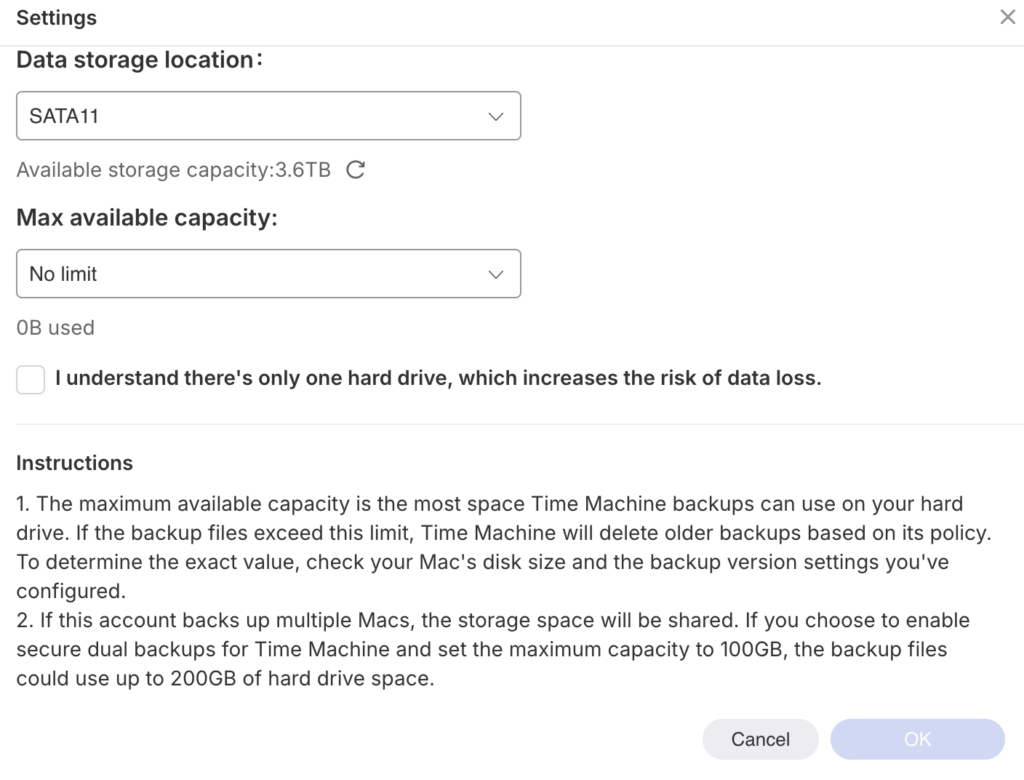
1. Storage Allocation & Retention Policy The “Max available capacity” defines the storage ceiling for your Time Machine data. For professional users with large internal drives (such as those on Mac desktops), we recommend setting this limit to 2-3 times your Mac’s used disk space. Once this limit is reached, Time Machine will automatically rotate and delete the oldest backup snapshots to make room for new data.
2. Multi-Device Management If you are backing up multiple Mac devices (e.g., both a MacBook and a Mac mini) to a single UnifyDrive account, the storage pool will be shared. Please ensure the allocated capacity is sufficient to accommodate the version history for all connected devices.
3. Data Redundancy (Secure Dual Backups) For mission-critical workstations, you can enable Secure Dual Backups. Please note that this feature creates an additional copy for enhanced safety, which will double the actual physical storage used on your UnifyDrive (e.g., a 100GB backup will occupy 200GB of drive space).
⚠️ Important Safety Note: > If your UnifyDrive is configured with a single hard drive, please be aware that there is no hardware-level redundancy. To protect your professional creative work, we highly recommend a dual-drive RAID configuration.


